A Minecraft Skin Generator turns an ordinary image into the flat PNG layout Minecraft uses for a player skin. The tool takes a portrait, avatar, character concept, mascot, or simple illustration, maps it onto a blocky player figure, and prepares a downloadable skin file you can use as a starting point.
Arnis Tools
Minecraft Skin Generator
Turn a character image into a Minecraft-style skin PNG in your browser. Adjust the crop, preview the blocky figure, and export a 64x64 or 128x128 skin.
PNG, JPG, WEBP, GIF · Max 10MB · Drag and drop supported
Key Features
Built for quick skin creation.
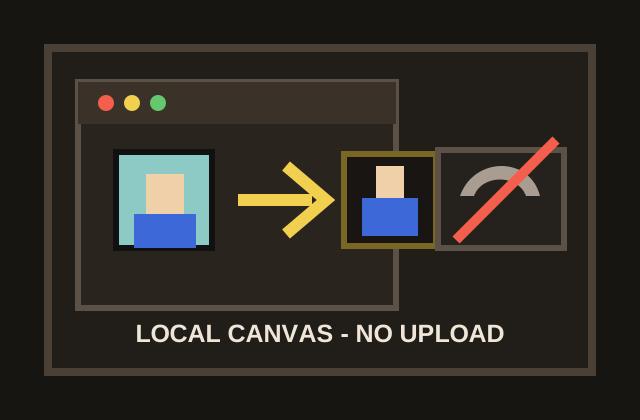
The Minecraft Skin Generator uses browser-based canvas processing to convert your selected image locally after the page loads, keeping the editing loop fast and avoiding a required server upload for the tool conversion.
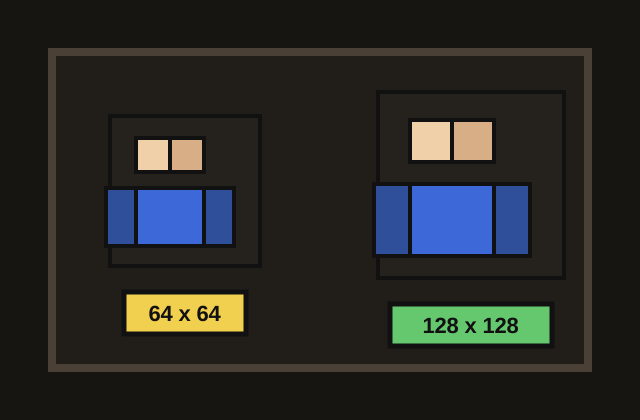
The Minecraft Skin Generator exports either a 64x64 classic Minecraft skin or a 128x128 HD-style PNG, depending on the server, launcher, editor, or workflow you plan to use next.
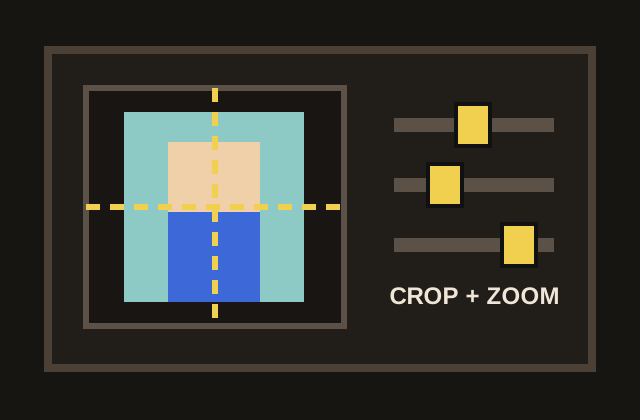
The Minecraft Skin Generator adjusts the crop with sliders, drag positioning, wheel zoom, and precise mode so the face, torso, arms, and legs land in the right parts of the skin layout.
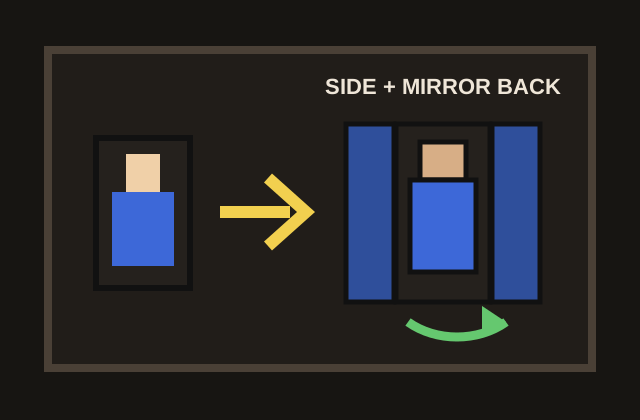
The Minecraft Skin Generator uses back mirroring and side generation options to create a complete player model from one front-facing image, even when the original artwork does not include side or rear views.
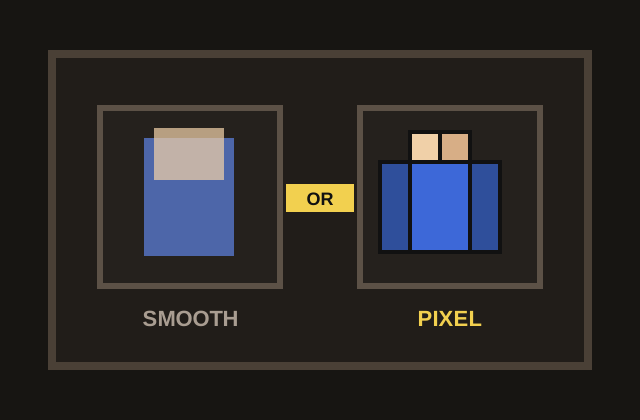
The Minecraft Skin Generator can toggle smooth scaling for softer previews or disable it for a crisper pixel-art feel. The setting helps you choose between a cleaner avatar look and sharper Minecraft-style edges.
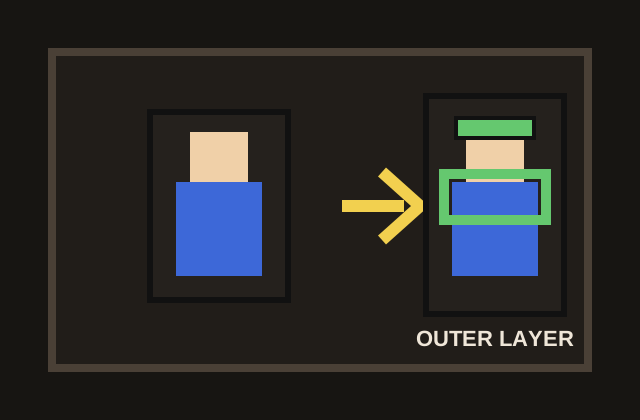
The Minecraft Skin Generator can add an optional outer layer when you want the export to include extra surface detail for hair, hats, jackets, sleeves, or other clothing-like accents.
What is it?
What is a Minecraft Skin Generator?
The Minecraft Skin Generator is built for speed. You do not need to open a full pixel editor just to try an idea, crop a character, or see whether a face reads well at Minecraft scale. Upload an image, position the subject, choose the output options, and preview the result before saving the final PNG.
The Minecraft Skin Generator runs in your browser with canvas processing. After the page loads, the image conversion happens locally, which keeps the workflow quick and avoids sending the selected file to an Arnis server. It is best for prototypes, profile avatars, roleplay characters, quick creator ideas, and first drafts that you may refine later in a dedicated skin editor.
- Image in
Use the Minecraft Skin Generator to start from a portrait, avatar, mascot, or character concept instead of a blank skin map.
- Skin PNG out
Use the Minecraft Skin Generator to export a Minecraft-shaped PNG that can become your first draft or editor starting point.
- Browser workflow
Use the Minecraft Skin Generator to crop, preview, and download locally after the page has loaded.
How to use it
How to turn an image into a Minecraft skin
Start with a clear portrait or character image
Open the Minecraft Skin Generator and upload a PNG, JPG, WEBP, or GIF with the face or character centered. Images with strong outlines, simple lighting, and enough contrast usually survive the low-resolution Minecraft skin layout better than busy screenshots.
Crop and position the subject
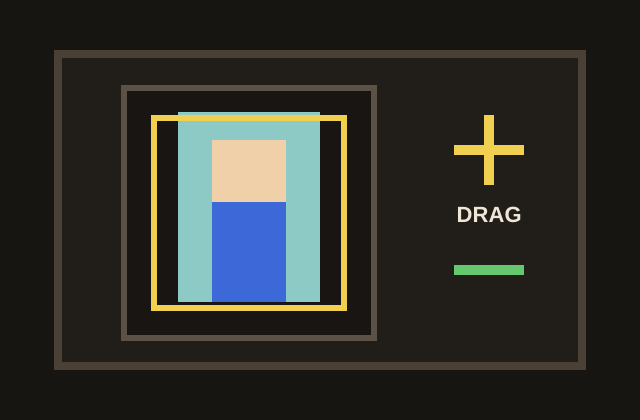
Use the Minecraft Skin Generator drag positioning, horizontal and vertical sliders, zoom, wheel controls, and precise editing when the face needs small adjustments. The source preview helps you line up the head, body, arms, and legs before export.
Choose skin options
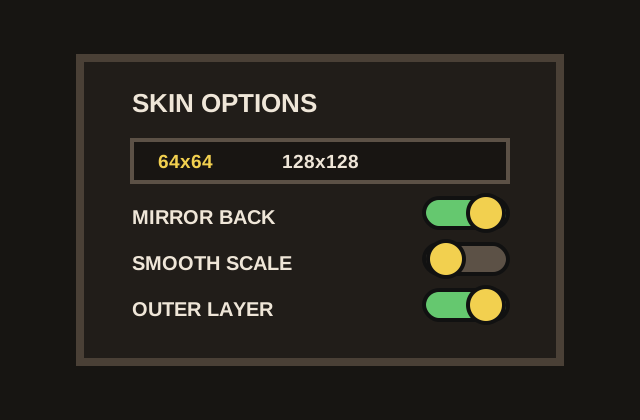
In the Minecraft Skin Generator, pick 64x64 for the classic Minecraft skin size or 128x128 for an HD-style export. You can mirror the back, choose how side panels are generated, enable smoother scaling, or add an outer layer for extra clothing-like detail.
Preview and download the PNG
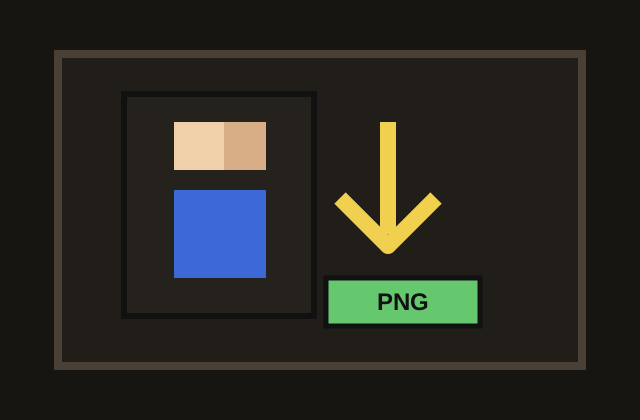
Check the Minecraft Skin Generator preview, confirm that the face and outfit still read clearly, then download the finished PNG. If you want hand-painted polish, open the exported file in a skin editor and refine the pixels from there.
Why use us
Why use this Minecraft Skin Generator?
The Minecraft Skin Generator is made for quick experimentation. When you have an avatar, drawing, mascot, or character concept, you can see whether it works as a Minecraft skin in minutes instead of building the entire layout by hand.
The Minecraft Skin Generator keeps the core conversion simple. The page focuses on upload, crop, preview, options, and download, which makes it easier for beginners while still giving creators enough control to produce a useful first draft.
The Minecraft Skin Generator is a strong bridge into manual editing. The generated PNG gives you a correctly shaped starting file, so you can spend your time polishing eyes, clothing, shading, and accessories instead of arranging the base skin map from scratch.
The Minecraft Skin Generator works in a normal browser on desktop and modern mobile devices. That makes it useful when you want to create or adjust a skin idea without installing extra software.
The Minecraft Skin Generator separates the main creative decisions into clear steps: choose the image, position the subject, pick skin options, preview the figure, and download the PNG when it looks right.
The Minecraft Skin Generator gives creators a repeatable first-draft workflow. You can try several source images, compare 64x64 and 128x128 exports, and keep the version that is easiest to polish.
Cleaner result
Tips for sharper Minecraft skins
Use the Minecraft Skin Generator with an image where the face or character is centered vertically and not hidden by heavy shadows. Minecraft skins are small, so large shapes matter more than tiny details. Clear eyes, a readable hair shape, a simple outfit, and strong color contrast usually look better than a complex full-body illustration.
If the Minecraft Skin Generator side panels look too streaky, switch from edge stretching to squeezing and compare the preview. Edge stretching can preserve colors from the outer border, while squeezing can keep more of the original front artwork. If the figure feels blurry, disable smooth scaling for a more pixelated style.
Treat the Minecraft Skin Generator result as a fast draft rather than a final professional skin. A one-image conversion cannot know the true back of a jacket or the exact shape of a hairstyle, but it can give you a correctly sized skin PNG that is easy to improve in a skin editor.
- Front and center
Use the Minecraft Skin Generator with a subject that is centered, bright, and easy to read at small size.
- Sharper pixels
Disable smooth scaling in the Minecraft Skin Generator when you want a crisper Minecraft-style result.
- Edit after export
Export from the Minecraft Skin Generator, then polish eyes, clothing, symmetry, and small details in a skin editor.
FAQ
Frequently asked questions
Does the Minecraft Skin Generator upload my image?
The Minecraft Skin Generator conversion uses browser canvas APIs and runs locally after the page loads. The selected image is not sent to an Arnis server by this tool.
What image formats can I use?
The Minecraft Skin Generator accepts common image formats such as PNG, JPG, WEBP, and GIF. For the cleanest result, use a clear portrait or character image with the subject centered.
Can I export 64x64 and 128x128 Minecraft skins?
Yes. The Minecraft Skin Generator export menu supports a 64x64 classic Minecraft skin and a 128x128 HD-style PNG, so you can choose the size that fits your next editor or workflow.
Will the skin work in Minecraft Java Edition?
The Minecraft Skin Generator exports a standard PNG skin layout. Minecraft Java Edition commonly uses 64x64 skins, so choose the classic export if you want the safest starting point.
Will the skin work in Minecraft Bedrock Edition?
The exported PNG can be used as a starting skin file, but Bedrock import behavior depends on the device, account, and current Minecraft interface. If one size does not import cleanly, try the 64x64 export first.
Why does my skin look stretched on the sides?
A single front-facing image does not include real side artwork, so the Minecraft Skin Generator has to infer side panels. Try switching between edge stretching and squeezing, then adjust the crop until the preview looks balanced.
What does mirror back do?
Mirror back uses the front image to create a back-facing layout. It is helpful for quick drafts because many uploaded portraits and character images do not include a separate back view.
What is the outer layer option?
The outer layer adds extra surface detail in the Minecraft skin layout. It can help represent hair, hats, jackets, sleeves, or decorative clothing elements above the base body.
Can I edit the PNG after downloading?
Yes. The downloaded PNG is a normal image file. You can open it in a Minecraft skin editor or pixel editor to repaint details, fix symmetry, add shading, or clean up the final result.
Is this an official Minecraft or Mojang tool?
No. Arnis is an independent tool site and is not an official Minecraft product. It is not associated with Mojang or Microsoft.